Pairing the TM-P80II printer
Prerequisites
– Install the Epson Print Enabled app.
– Have at least version 2.5.11 of UBY Soil Mobile on Android (only).
- To make the printer pairable, first open it, then press the right button until you hear a beep.
- Close the printer: it will print a procedure.
- Select the action to perform (press once to initiate pairing mode), then press and hold to confirm.
- The printer is now in pairing mode.
- Go to the Epson Print Enabled app for the next steps.
- Go to “Printer Selection” and select the device. After a short wait, the device will be paired, and its name will appear in the app.
- To test the connection: “Check Printer Operations” > “Demo” > “Print Sample Receipt”.
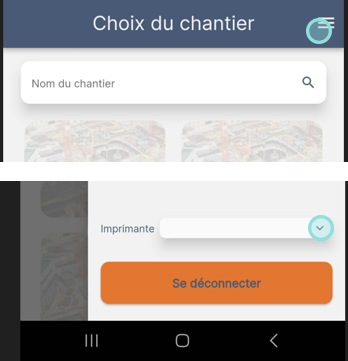
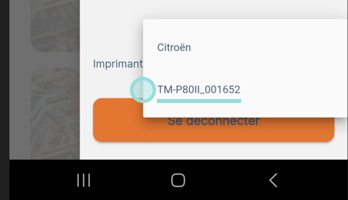
- In the Uby-Soil Mobile app, go to the menu (or your profile) and select the paired printer.
Printing
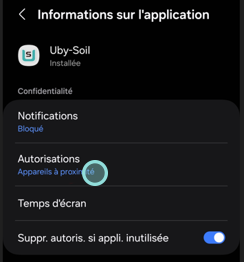
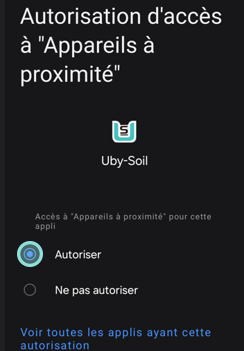
Normally, during installation, a pop-up should ask for permission to detect “nearby devices”.
If this does not happen, you will need to go to the app’s settings and enable it manually.
After pairing the printer with the system, select the printer from the “Profile” menu in UBY Soil.